
 Support FPE

How to Trigger Gameplay from Blender Animation Frames
The animator already knows the exact frame when a foot lands, a latch clicks, or a magical puff should appear. Put the event on that authored moment in Blender and let the exported animation carry its timing into the game.
When should you use frame events?
Use them when timing belongs to the authored animation: footsteps, impact windows, particles, audio cues, prop release, or cutscene beats. Use an animation-finished signal for end-of-clip state changes. Do not use frame events to update a value continuously; property tracks already do that better.
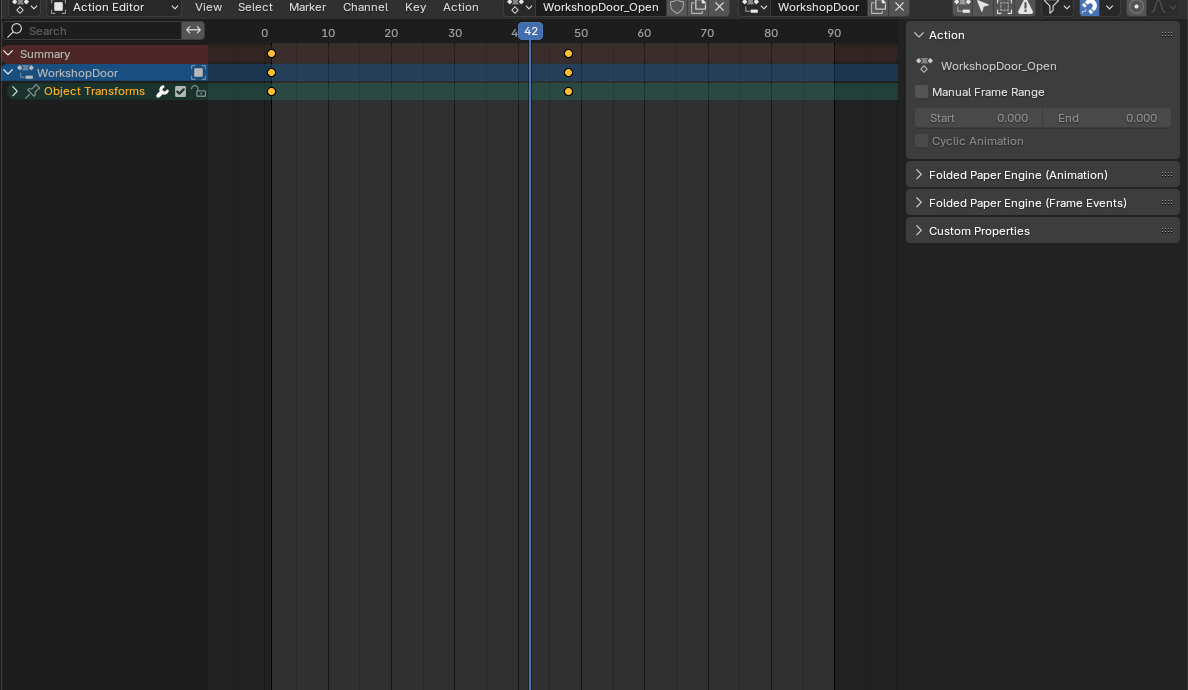
Place the event in Blender
- Open the action in the Dope Sheet → Action Editor.
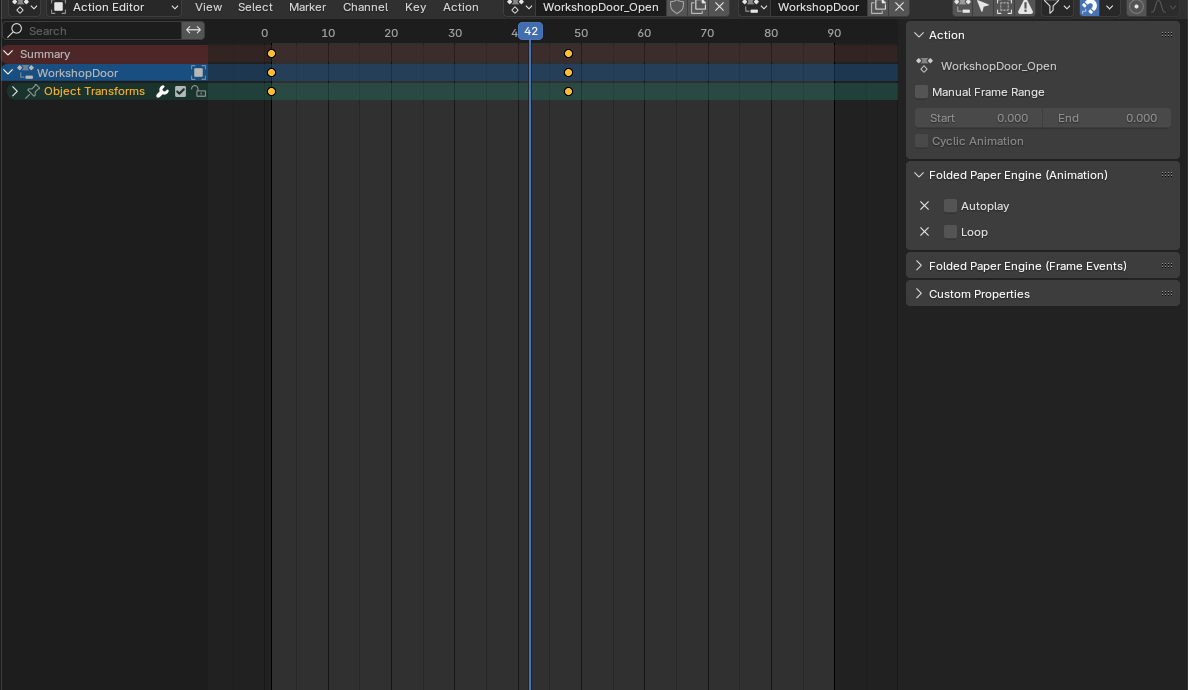
- In Folded Paper Engine (Animation), choose whether the action should autoplay or loop.
- Move the playhead to the exact authored moment.
-
In Folded Paper Engine (Frame Events), add a Frame Event
and give it a stable Scene Event name such as
FOOTSTEPorDOOR_LATCHED. - Create the matching Scene Event and start with one command you can see or hear.
- Export with animation and Custom Properties enabled, then test normal, interrupted, and looping playback in Godot.
The traditional Godot workflow
- Select the animation in
AnimationPlayer. - Add a Call Method Track targeting a stable relay node.
-
Insert a key at the exact moment and call a method such as
animation_event(&"FOOTSTEP"). - Have that relay emit a signal or dispatch the named event to the owning character or scene.
- Test forward, looping, blended, and interrupted playback.
signal frame_event(event_id: StringName)

func animation_event(event_id: StringName) -> void:
    frame_event.emit(event_id)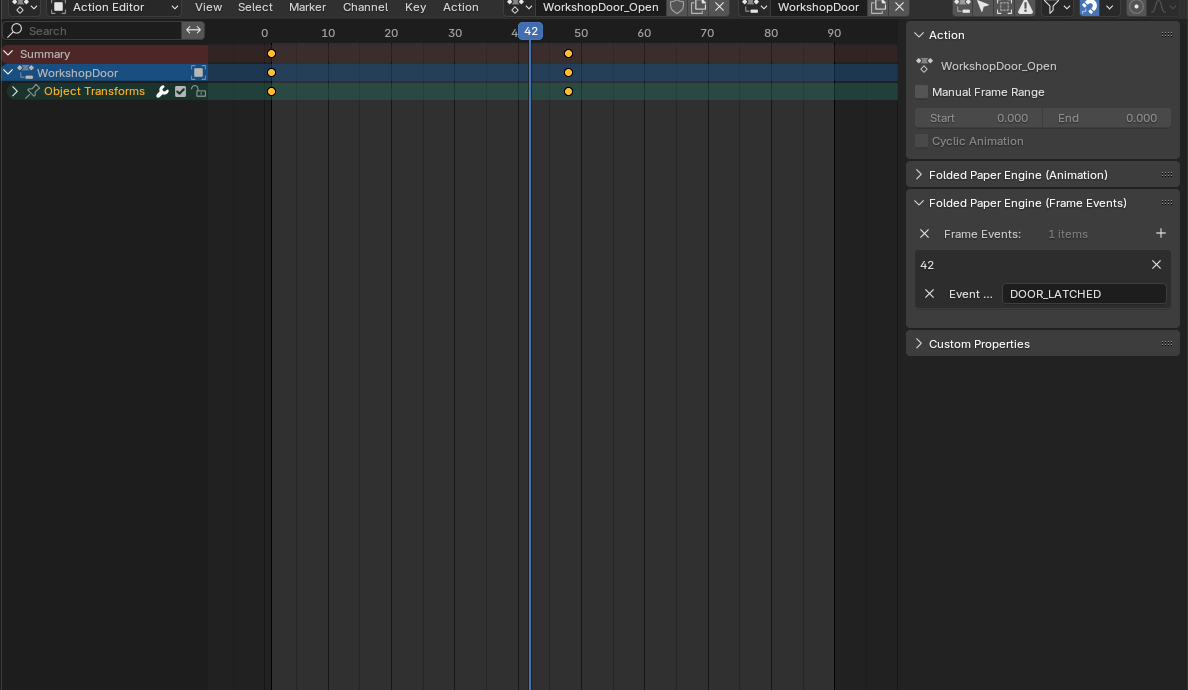
Why use a relay?
A method track can call any method, but directly calling delete_enemy() or load_next_level() makes the animation difficult to reuse. Calling
one stable relay with a named event keeps the clip portable. It also gives you
one place to log, ignore stale events, or translate authored names into gameplay
commands.
Common mistakes
- Expecting preview calls: Godot does not execute method-track calls while previewing in the editor.
- Destructive immediate callbacks: deferred method-call mode is safer when events modify the scene tree or animation player.
- Polling the current frame: fast playback and frame-rate changes can skip equality checks.
- Forgetting interruption: decide whether cancelling an attack also clears its pending hit window.
Godot reference: Animation track types