
 Support FPE

Make Interactive Doors and Switches in Blender for Godot
A good interactive door is tiny theater: the player approaches, something notices, motion begins, sound lands on the right beat, and the world changes. Blender already contains the stage, prop, timing, and blocking—so author the mechanic there too.
You will make: an animated Blender door driven by a nearby trigger
or switch, with an optional sound placed on the exact animation frame.
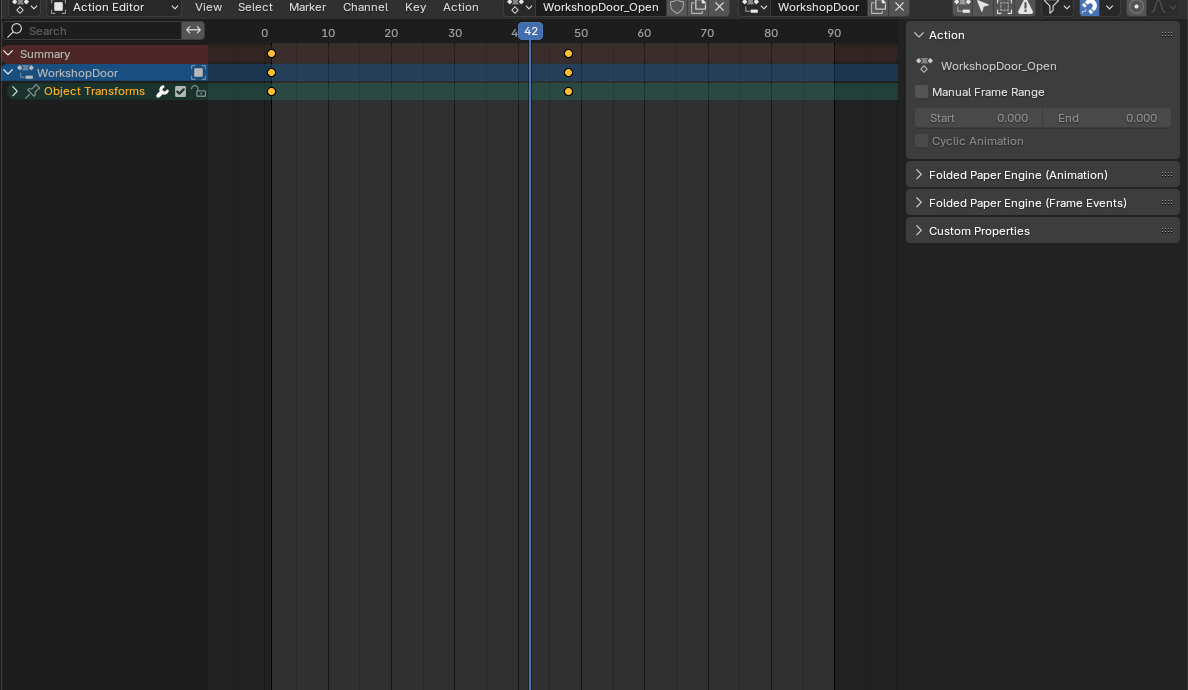
Animate the prop first in Blender
- Give the door and its moving part clear names.
- Set the hinge or sliding origin correctly before animating.
-
Create an action such as
Door_Openand animate only the transform needed for the motion. If Blender animation is new to you, begin with Blender's keyframe introduction, then see Actions and the Action Editor. - Preview the action in Blender and check that it does not clip through surrounding art.
- In Folded Paper Engine (Animation), leave Autoplay off. Enable Loop only when repetition is genuinely intended.
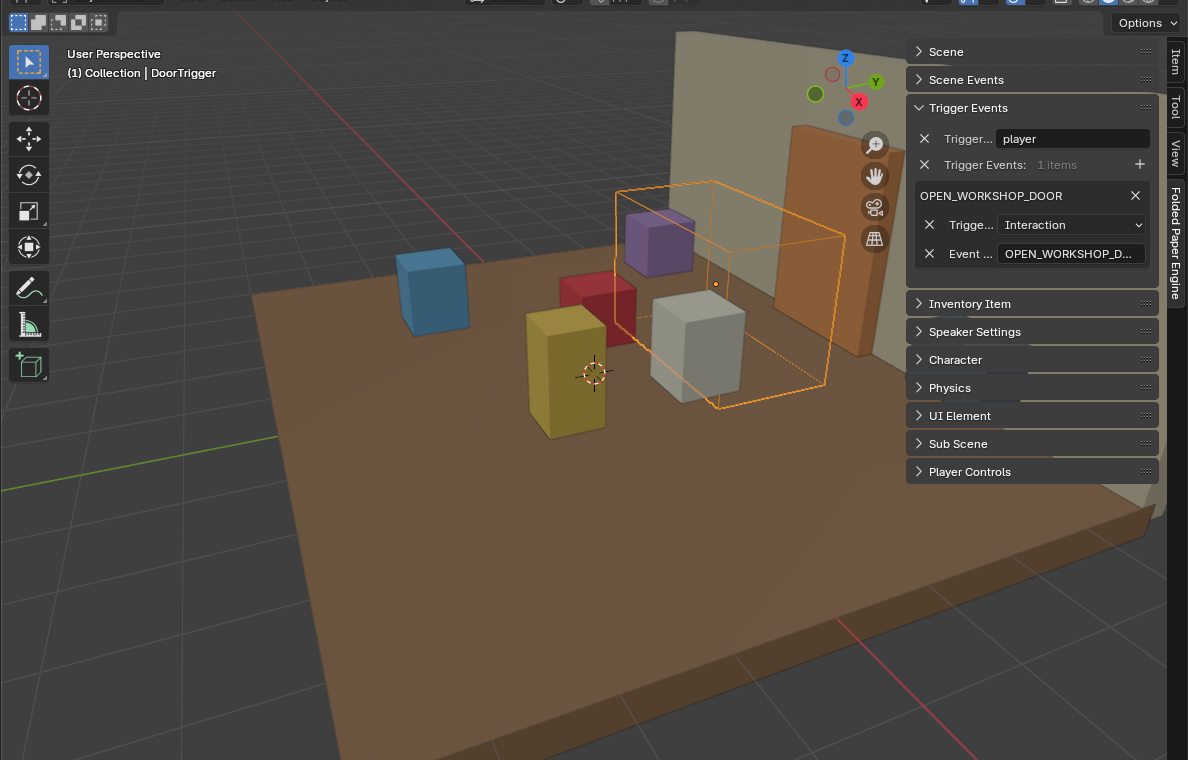
Add the activation
For an automatic door, place a trigger volume across the approach and
dispatch a semantic event such as OPEN_WORKSHOP_DOOR. For a
deliberate switch, author the switch object and use a trigger or custom
interaction to dispatch that same event. Keeping one event name means either
input can operate the door without duplicating the result.
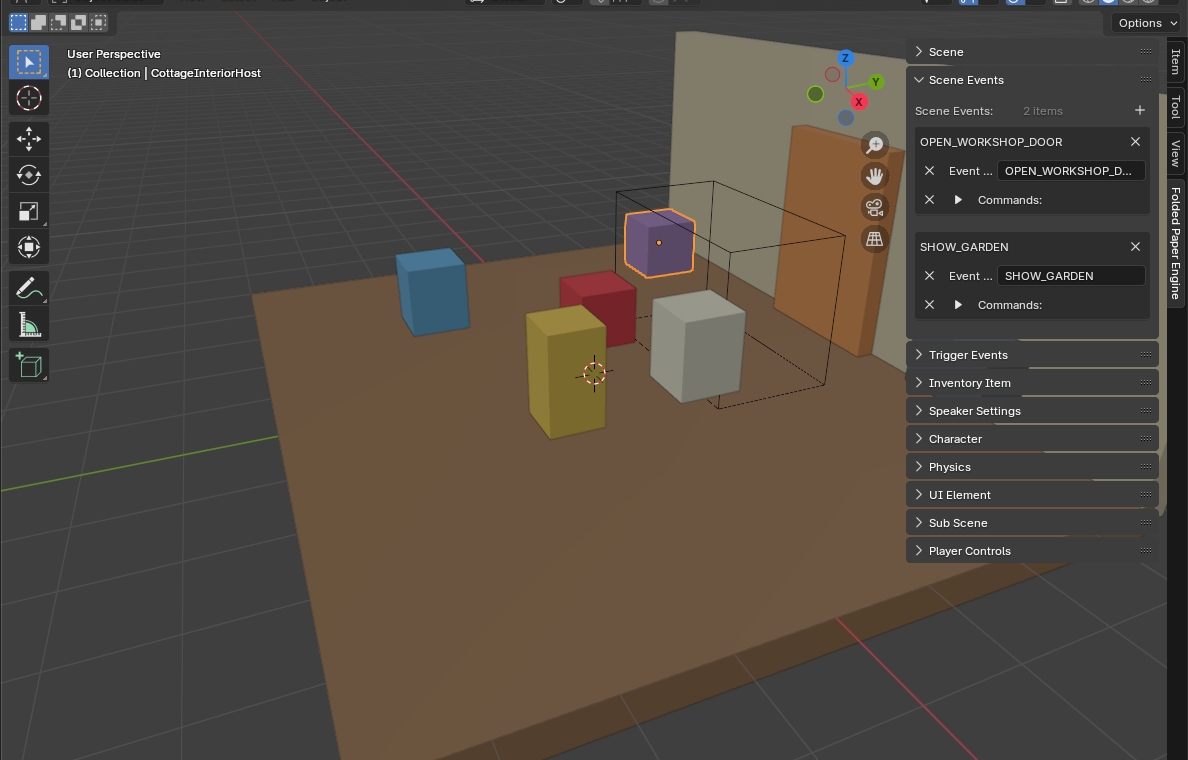
Build the Scene Event
- Create the matching event in Blender's Scene Events panel.
- Add the door action to Animations.
- If the door has a positioned sound, mark its source object as a Speaker and trigger it from the same event.
- If the sound must land on a precise latch or impact frame, use a Frame Event instead of starting it at the beginning.
- For a one-way transition, add the level-loading command only after the visual timing is proven.
Make it robust
- Prevent the same opening animation from stacking repeatedly.
- Use separate open and close events when the motion must reverse cleanly.
- Keep the invisible trigger slightly away from moving geometry.
- Test with a second participant or physics object to confirm filtering.
- Do not hide unique puzzle rules inside the animation; dispatch a named event that Godot code can extend.