
 Support FPE

How to Load Levels and Interiors from Blender
The doorway already knows where one space ends and another begins. Author that transition beside the architecture in Blender, then choose whether the old world should disappear or remain behind a streamed interior.
First decision: use Load Level when the current
level is finished; use a Blender Sub Scene host when the parent
world should remain active.
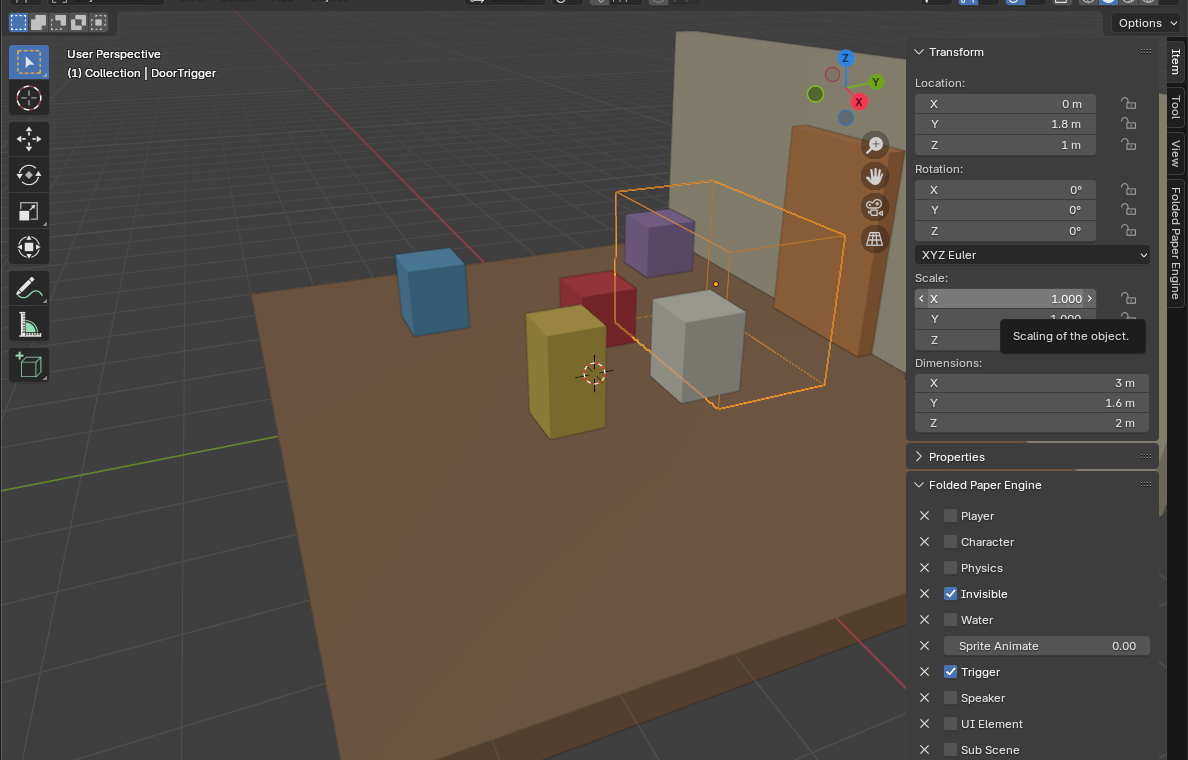
Author the transition in Blender
- Place a trigger at the doorway, portal, or boundary. If you have not made one before, follow How to Create Triggers in Blender for Godot or watch the Triggers tutorial first.
- In Blender's matching Scene Event, add a Load Level command pointing to the project-relative GLB/GLTF or Godot scene when the old level should be replaced.
- For an interior, mark a Blender host object as Sub Scene, choose its Scene File, and decide whether it should Auto Load.
- Use Pause, Resume On Unload, and Unload Delay when the parent should wait while the child is active.
- Pair the transition with control, camera, animation, or fade commands only after the basic load works.
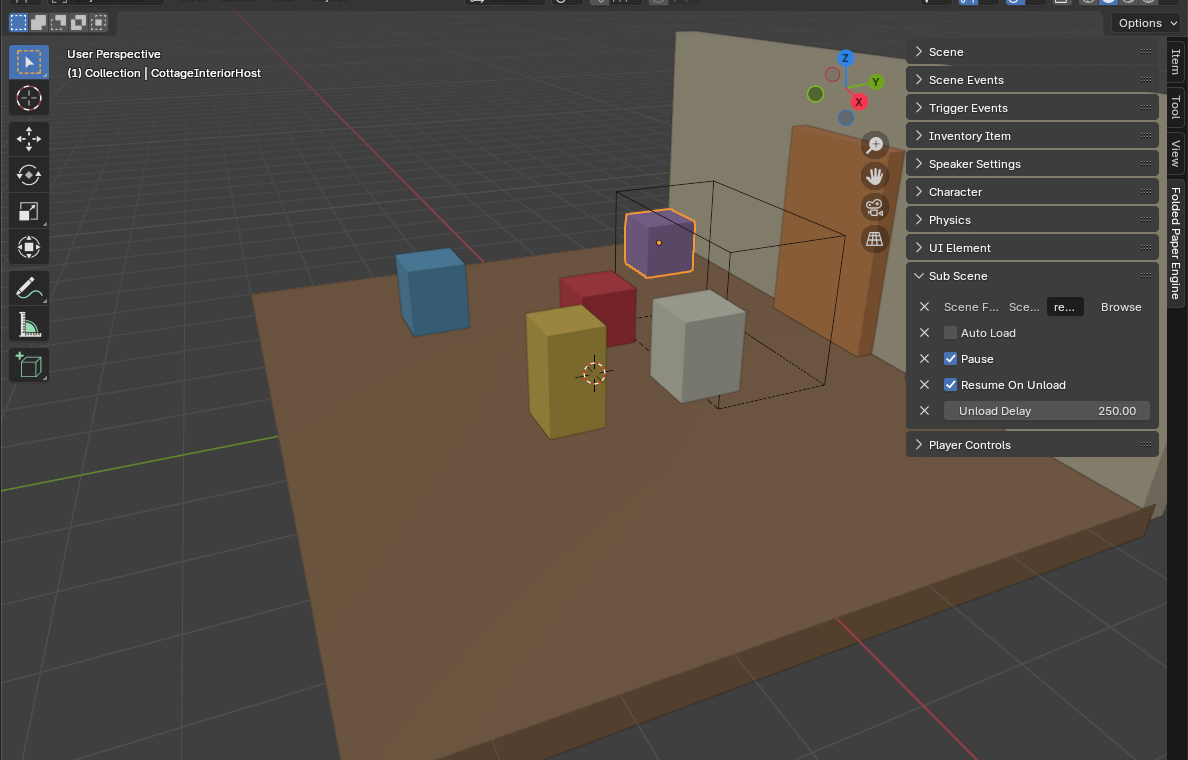
Choose the ownership boundary
- Full scene change: separate levels, menus, or chapters with clean ownership boundaries.
- Instanced sub-scene: interiors, streamed regions, overlays, encounters, or reusable spaces inside a persistent level.
- Persistent manager: save data, settings, music policy, and transition state that must outlive either scene.
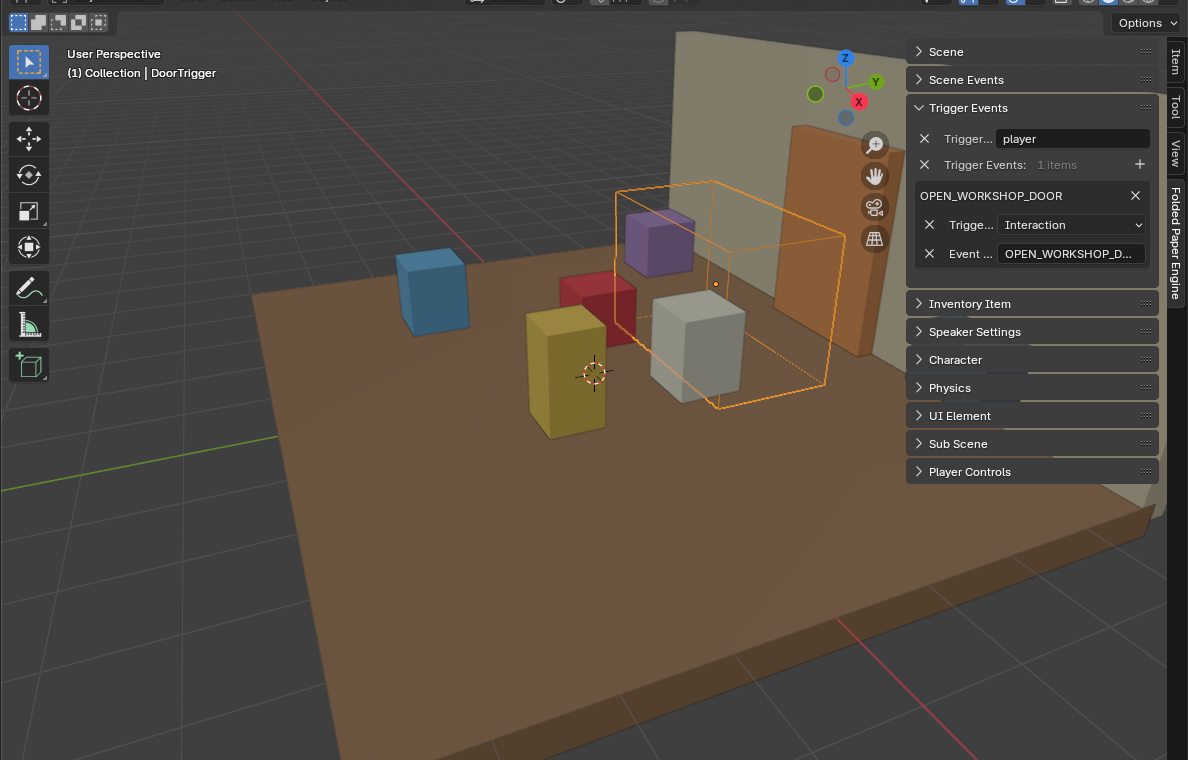
A safe transition sequence
- Reject duplicate transition requests immediately.
- Disable player input and display a fade or loading state.
- Save only durable state: IDs, inventory, flags, and destination—not live node references.
- Stop or transfer owned audio, timers, and async work.
- Load the destination and wait until its required nodes are ready.
- Place the player at a stable spawn ID, remove the fade, and restore input.
Stream a sub-scene
Instantiate the packed scene beneath a dedicated host and keep the returned instance as the authority for unloading it. Prevent a doorway trigger from creating the same interior twice. When unloading, ensure no persistent manager keeps references to nodes inside the removed scene.
Common mistakes
- Allowing a trigger to fire repeatedly while the first load is still running.
- Keeping node references across a full scene replacement.
- Restoring controls before the destination and spawn point are ready.
- Leaving music, cameras, or overlays owned by the old level alive.
- Using filenames as spawn identity instead of an explicit destination ID.
Godot reference: SceneTree change_scene_to_file reference