
 Support FPE

How to Connect Blender Triggers to Dialogue in Godot
The artist can decide where and when a conversation begins in Blender; Godot owns the conversation resource and presentation. Dialogue stays easier to extend when detection, data, UI, and gameplay effects remain separate.
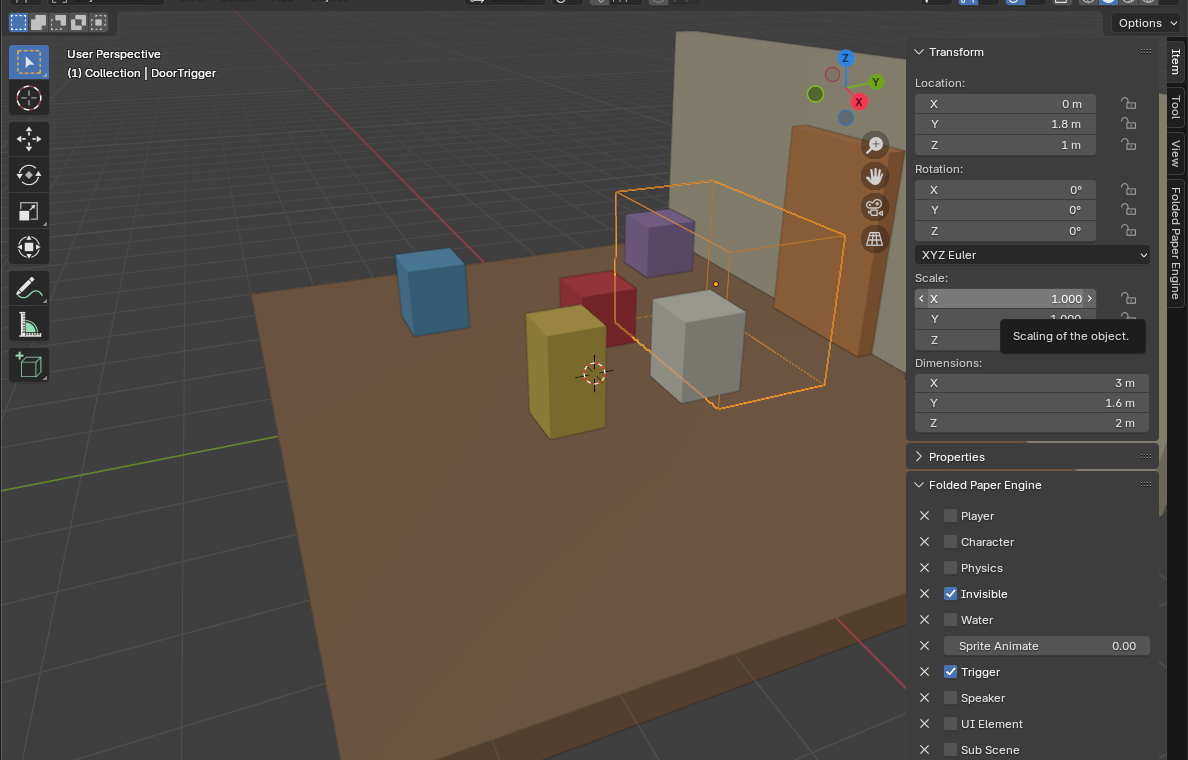
When should dialogue start?
Common choices are automatic proximity, a deliberate Use action, a scripted event, or an interaction after a quest condition becomes true. Treat the trigger as a request—not proof that the conversation may start. The conversation manager should still check required characters, prior state, and whether another dialogue is open.
Model dialogue as data
Give every conversation and comment a stable ID. Each comment contains a speaker, text, and zero or more reply options. A reply points to the next comment and may include conditions or effects. Ending is simply reaching a comment with no valid replies or selecting a reply with no next ID.
signal conversation_started(instance)
signal conversation_ended(conversation_id: StringName)

func request_start(id: StringName, actor: Node) -> bool:
    var definition = catalog.get(id)
    if definition == null or not definition.can_start(actor):
        return false
    active = definition.create_instance(actor)
    conversation_started.emit(active)
    return true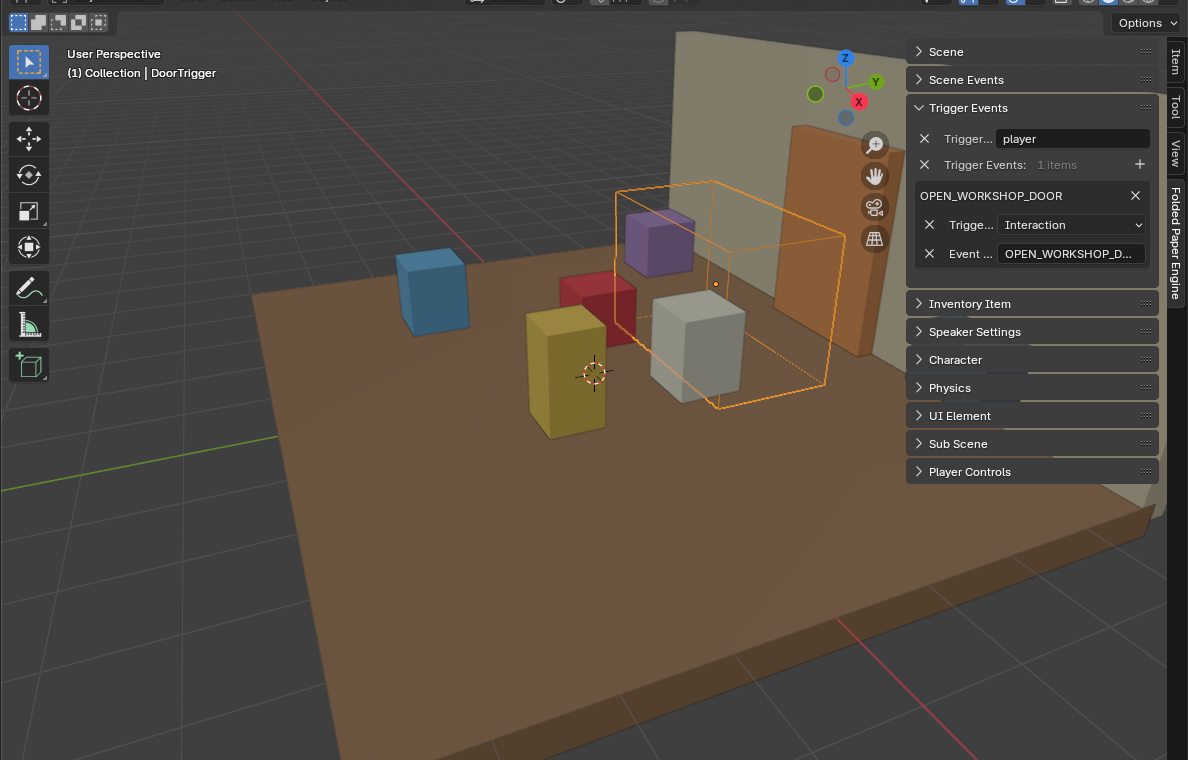
Build the conversation in Godot and connect it in Blender
- In Godot, create the conversation, comment, and reply resources. Give the conversation a stable ID and connect each reply to the next comment.
-
In Godot, add the conversation to the catalog used by
FPEConversationManager, and make a dialogue UI that reads the active comment and reply choices. - In Blender, create or select the trigger volume where the conversation begins. Follow the Blender trigger guide if that step is new.
- In Blender's Trigger Events panel, add the appropriate trigger type—usually Interaction for deliberate dialogue or Enter for automatic dialogue—and give it a clear event name.
- In Blender's Scene Events panel, create the matching event and add Start Conversation with the exact Godot conversation ID.
- Export the GLB, run the scene in Godot, and verify start, reply selection, ending, repeated activation, and missing-character behavior.
Common mistakes
- Embedding long dialogue trees directly in an NPC script.
- Making the UI the authority for the current comment.
- Referring to speakers only by scene paths, which change as levels are reorganized.
- Coupling reply text to effects; localizing text should not change gameplay behavior.
Godot reference: Using signals