
 Support FPE

How to Add Custom Interactions to FPE Objects in Godot
FPE can carry the repeated identity and setup from Blender; your game can add the unique interaction. Doors, buttons, notes, and pickups still benefit from one small contract: can the player interact, what prompt appears, and what happens next?
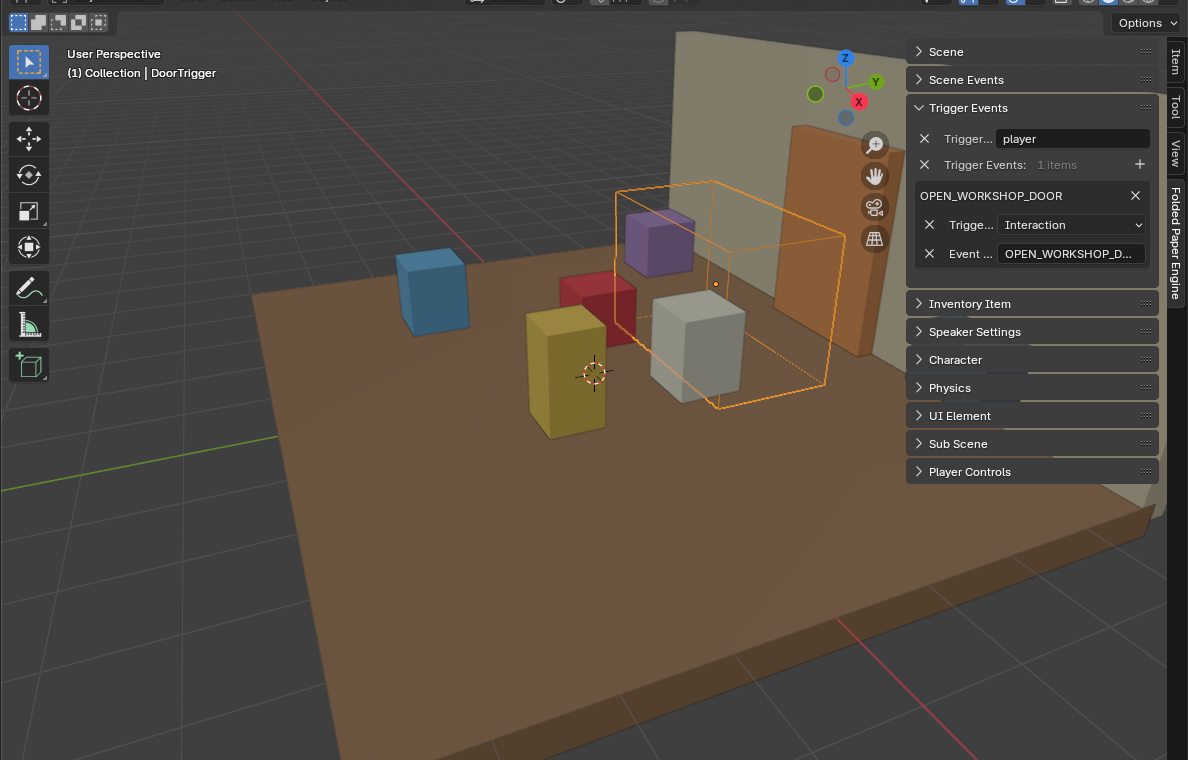
Define a tiny interaction contract
An interactable should answer whether it is currently usable, provide prompt text, and perform one action. Keep player input out of the door script; the player finds a target and asks it to interact.
class_name Interactable
extends Node3D

@export var prompt := "Use"

func can_interact(_actor: Node) -> bool:
    return true

func interact(_actor: Node) -> void:
    pass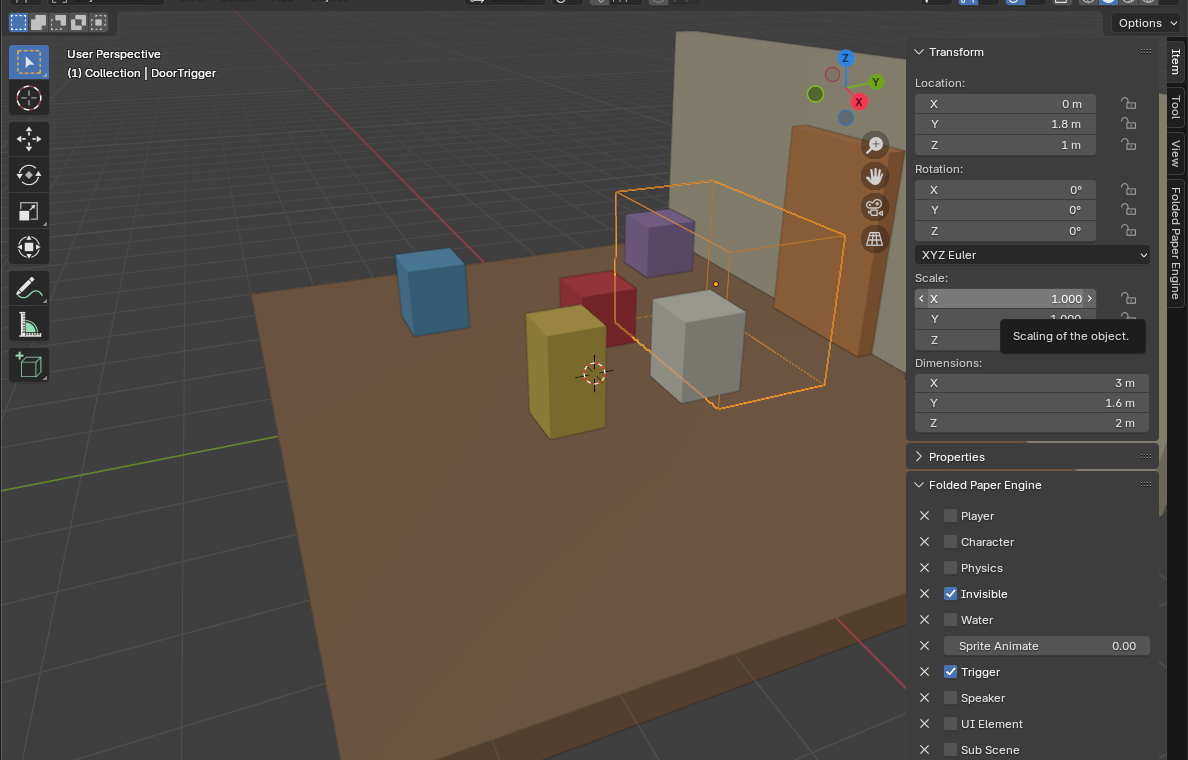
Three useful detection patterns
Proximity
An Area3D tracks nearby candidates. This is forgiving and works
well for cozy games, controller input, and objects that should announce themselves.
Pick the closest or highest-priority candidate when several overlap.
View-centered ray cast
A RayCast3D from the camera gives precise first-person selection.
Configure it to collide with the layers used by interactive physics bodies or
areas, and walk from the collider to its interaction component.
Direct pointer input
Godot can deliver input events to a CollisionObject3D when object
picking is enabled. This is a good fit for point-and-click scenes, but less convenient
for keyboard or controller navigation.
Step-by-step implementation
- Create the interaction contract and implement it on one simple switch.
- Add one detector to the player and keep its current target in a single property.
- Show prompt text from that current target.
-
Map a project input action named
useand call the target only on the pressed edge. - Make state changes idempotent: an already-open door should not start five overlapping animations.
Common mistakes
- Putting bespoke ray-cast logic in every object instead of one player-side detector.
- Assuming the ray collider is the scripted root; imported meshes often have collider children.
- Leaving prompts visible after the target is freed or disabled.
- Hard-coding key names instead of using an Input Map action.
Godot reference: Ray casting