
 Support FPE

How to Extend FPE Triggers in Godot
FPE already turns a Blender trigger into a working Godot TrackingArea3D and dispatches its named events. Extend that system by listening to FPEEventManager in stable Godot code—not by rebuilding the Area3D or editing the imported scene.
TrackingArea3D → trigger group and activation-type checks → FPEEvent → FPEEventManager → Blender Scene Event commands and your Godot listeners.
Do not rebuild the trigger in Godot
A Blender-authored FPE trigger is not merely a mesh waiting for you to add an
Area3D. During import, FPE creates a TrackingArea3D,
builds its collision shape, watches for entering and exiting physics bodies,
handles player interaction triggers, checks the trigger groups on both
participants, and dispatches the configured event.
Keep authoring the volume, activation type, participant groups, and event name in Blender. Add GDScript when the named event must affect a custom Godot system such as quests, achievements, analytics, save state, procedural rules, or UI.
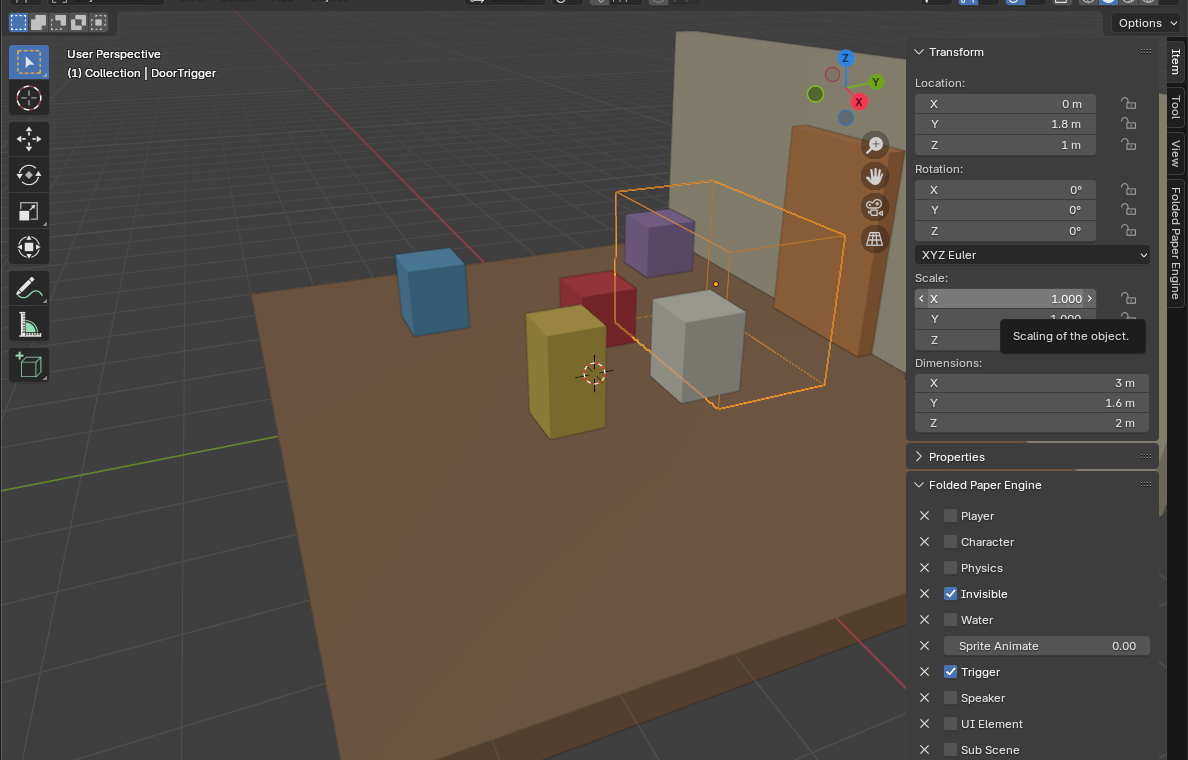
Give Godot a stable event contract
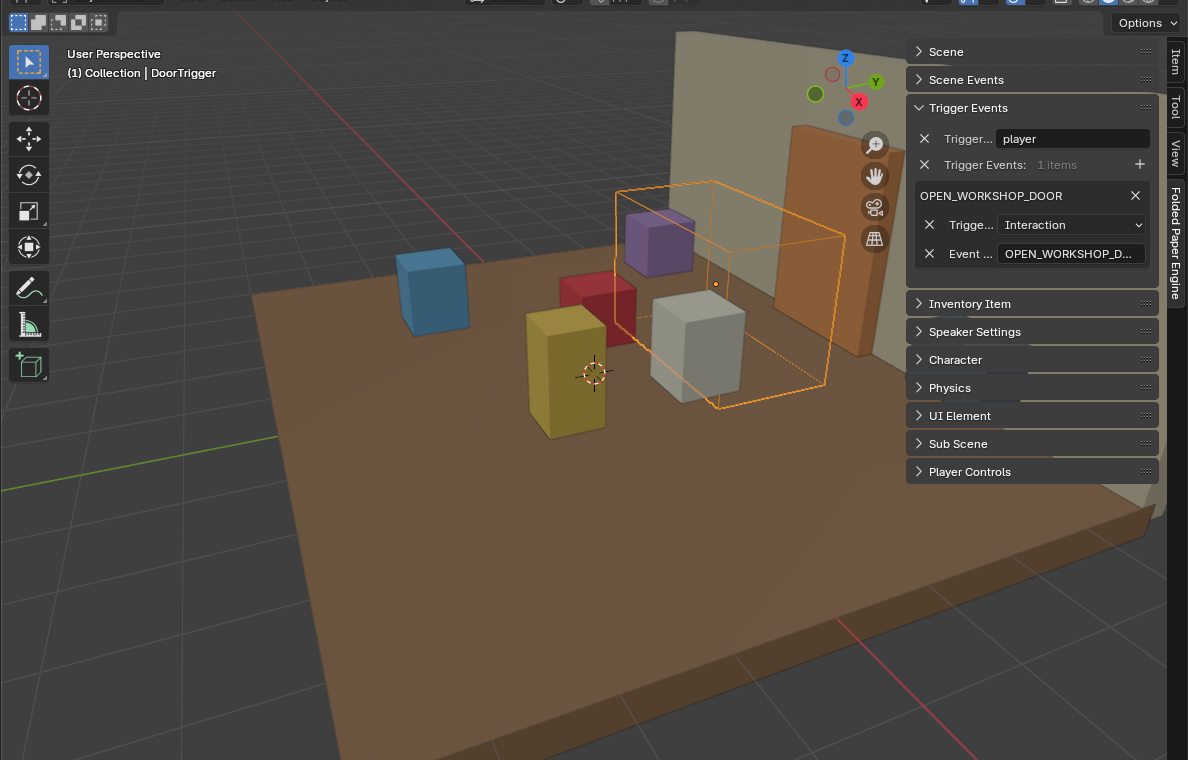
In Blender's Trigger Events panel, choose when the event fires
and give it a clear name such as OPEN_WORKSHOP_DOOR. The activation
type is important: Enter, Exit, and Interaction are different events, even
when they are attached to the same trigger object.
Trigger groups decide whether the participant is allowed to activate the trigger. FPE performs that check before it dispatches anything, so a Godot listener receives events that have already passed the Blender-authored filter.
Listen from GDScript
Connect to FPEEventManager.GLOBAL_INSTANCE.fpe_event in _ready(). Disconnect in _exit_tree() so replacing a scene or removing the
listener cannot leave an obsolete callback connected.
extends Node

const OPEN_WORKSHOP_DOOR := "OPEN_WORKSHOP_DOOR"

func _ready() -> void:
    var event_manager := FPEEventManager.GLOBAL_INSTANCE
    if not event_manager.fpe_event.is_connected(_on_fpe_event):
        event_manager.fpe_event.connect(_on_fpe_event)

func _exit_tree() -> void:
    var event_manager := FPEEventManager.GLOBAL_INSTANCE
    if event_manager \
    and event_manager.fpe_event.is_connected(_on_fpe_event):
        event_manager.fpe_event.disconnect(_on_fpe_event)

func _on_fpe_event(event: FPEEvent) -> void:
    if event.type != OPEN_WORKSHOP_DOOR:
        return

    _record_door_opened(event.owner, event.initiator)

func _record_door_opened(trigger: Node, initiator: Node) -> void:
    print(initiator.name, " opened ", trigger.name)
Choose the listener's lifetime deliberately
Put game-wide listeners in an Autoload or beside the FoldedPaperEngine node in your stable Godot shell. That is appropriate for save state,
achievements, quest progression, and other systems that must survive level
replacement. A listener that belongs only to one ordinary Godot scene can
remain on that scene and use the same connection pattern.
Do not attach persistent listeners beneath the FPE stage or to a generated imported node. FPE replaces generated level content during loading, and edits made directly inside an imported scene are not a durable extension point.
Understand what the event contains
event.typeis the event name authored in Blender.event.owneris the trigger that dispatched the event.event.initiatoris the player, character, or physics object that activated it.-
event.datacontainsowner_dataandinitiator_datafor FPE-authored trigger events. These dictionaries contain the imported Blender/FPE data for each participant.
func _on_fpe_event(event: FPEEvent) -> void:
    if event.type != "ENTERED_GREENHOUSE":
        return

    var owner_data: Dictionary = {}
    var initiator_data: Dictionary = {}

    if event.data is Dictionary:
        owner_data = event.data.get("owner_data", {})
        initiator_data = event.data.get("initiator_data", {})

    print("Trigger: ", event.owner.name)
    print("Activated by: ", event.initiator.name)
    print("Trigger metadata: ", owner_data)
    print("Initiator metadata: ", initiator_data)
Prefer the direct node references when the object is still loaded. Use stable names, IDs, and plain values from the metadata when information must survive a level unload or be written into a save file.
Let Blender commands and Godot code cooperate
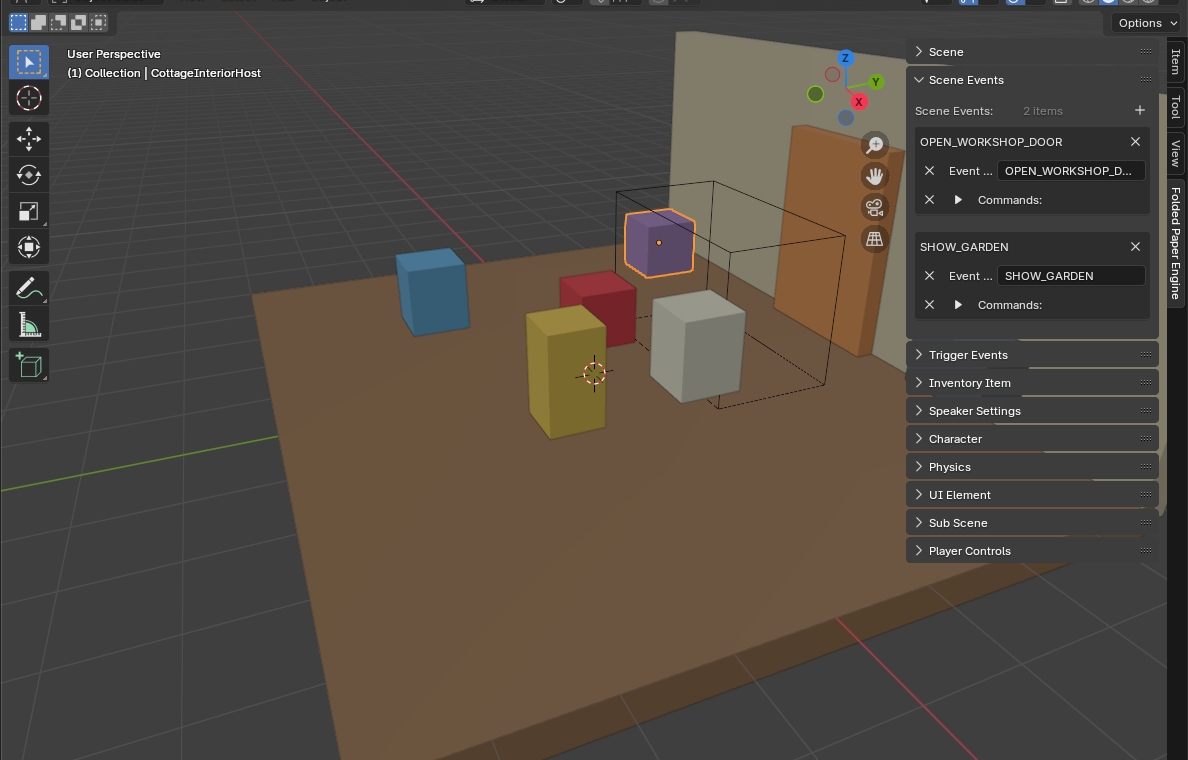
A matching Blender Scene Event registers an FPE event handler
for the same event name. When the trigger fires, that handler can play an
animation, switch cameras, play a speaker, load a level, or run other authored
commands. Your GDScript listener receives the same FPEEvent; adding
it does not replace or block the Scene Event.
Use that deliberately. Blender can open the animated door while Godot records
workshop_door_open = true in durable game state. Avoid implementing
the same consequence in both places, or it may run twice.
Dispatch an FPE event from your own Godot code
Custom Godot systems can enter the same event system. Supply a meaningful type, the node responsible for the event, the initiating node, and any plain data your listeners need.
func complete_workshop_quest(player: Node) -> void:
    var event := FPEEvent.new(
        "WORKSHOP_QUEST_COMPLETED",
        self,
        player,
        { "reward_kind": "brass_key", "quantity": 1 },
    )

    FPEEventManager.dispatch_event(event)
If Blender has a Scene Event named WORKSHOP_QUEST_COMPLETED, its
commands can respond too. This is useful when engineering logic determines
that something happened while artists should still control the camera,
audio, animation, or level response.
Use EventHandler for reusable integrations
Connecting to fpe_event is the clearest choice for most game code.
For a reusable integration that should register for one event type, subclass
EventHandler and keep the same handler instance so it can be removed
later.
# workshop_door_handler.gd
class_name WorkshopDoorHandler extends EventHandler

func handle_event(event: FPEEvent) -> void:
    print("Door event from ", event.owner.name)

# event_bridge.gd
extends Node

var door_handler := WorkshopDoorHandler.new()

func _ready() -> void:
    FPEEventManager.add_event_handler(
        "OPEN_WORKSHOP_DOOR",
        door_handler,
    )

func _exit_tree() -> void:
    FPEEventManager.remove_event_handler(
        "OPEN_WORKSHOP_DOOR",
        door_handler,
    )
This is the same handler mechanism FPE uses internally to connect Blender Scene Event commands to named events. Use it for packaged systems; use the global signal when a normal Godot node simply needs to observe several events.
Debug the real event path
- If nothing fires, confirm the trigger's activation type and event name in Blender first.
- Confirm that the trigger and initiator have compatible FPE trigger groups. A mismatched contract prevents dispatch before your listener runs.
-
Log
event.type,event.owner, andevent.initiatorat one global listener to prove whether dispatch occurred. - Check for spelling differences between Trigger Events, Scene Events, and GDScript constants.
-
Do not add a second
Area3Dmerely because you cannot find one in the imported file.TrackingArea3Dis created by FPE at runtime.
Godot reference: Using signals