
 Support FPE

How to Add 3D Audio and Background Music in Blender
Sound belongs to places and moments artists already understand: the hum lives inside the machine, the birds belong near the garden, and the music belongs to the level. Place that intent beside the art in Blender.
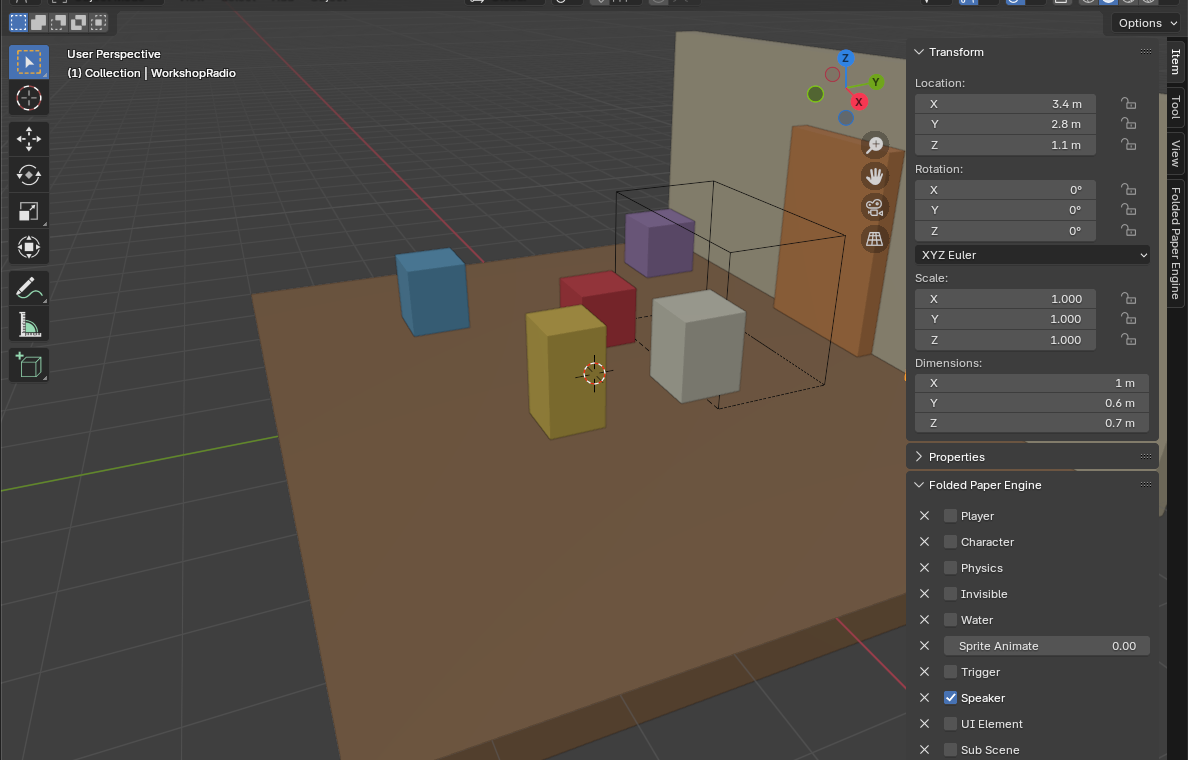
Turn an object into a speaker
- Select the mesh or empty where the sound should originate.
- Open Item → Folded Paper Engine and check Speaker.
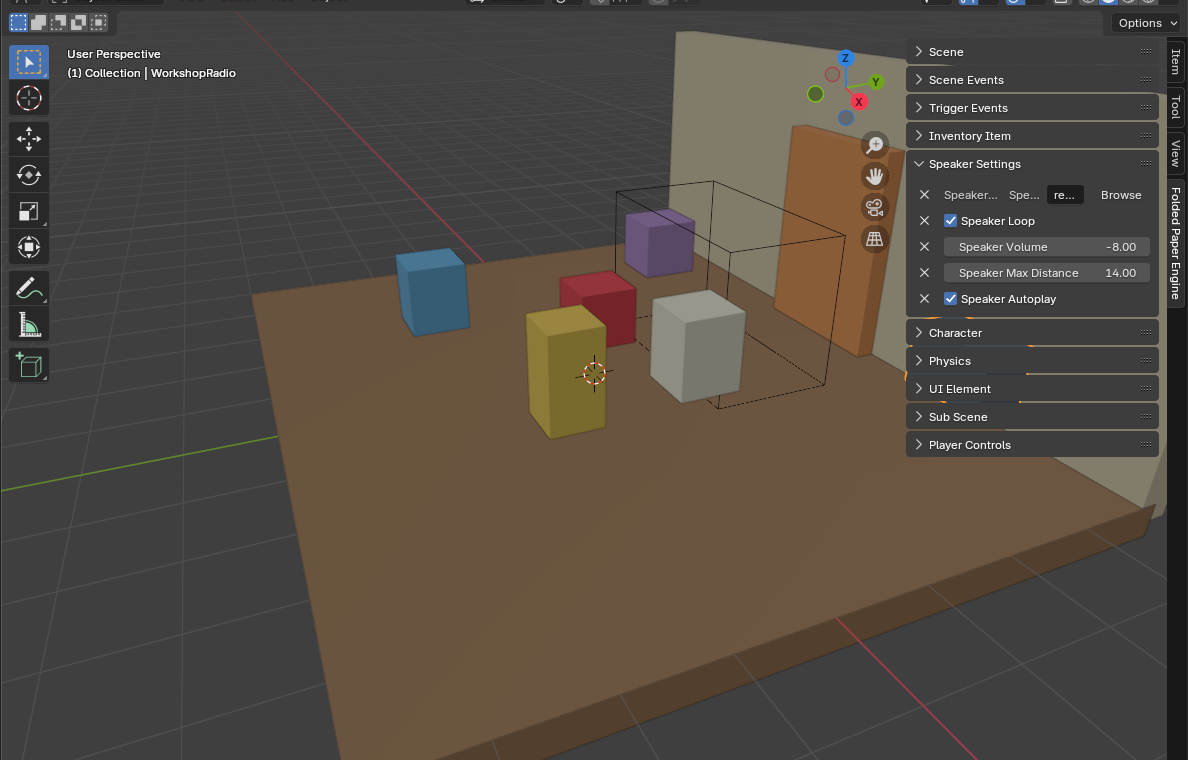
- Under Speaker Settings, choose the project-relative Speaker File.
- Set Speaker Autoplay for ambience, Speaker Loop for continuous sound, volume in decibels, and Speaker Max Distance.
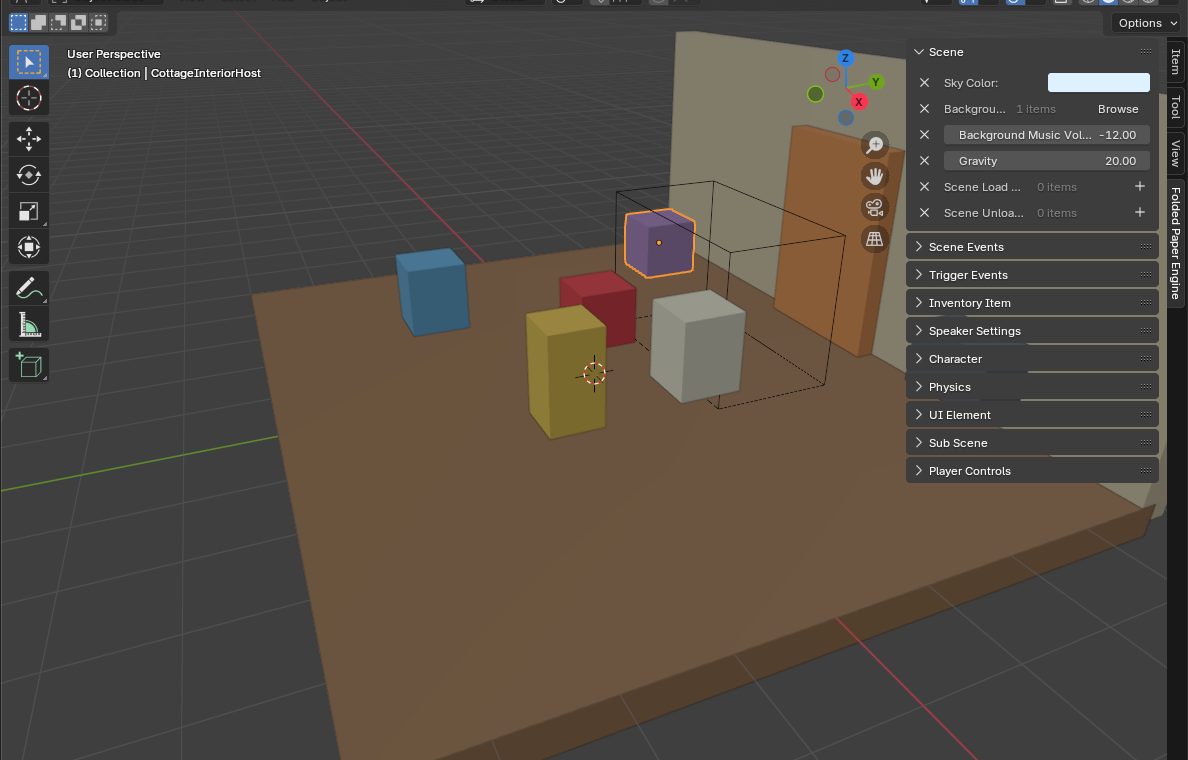
- For music that belongs to the whole level, use Scene → Background Music and its volume instead of a positioned speaker.
- Use triggers or frame events when playback should react to the player or animation.
Understand the Godot building blocks
Set up one positional sound
-
Add an
AudioStreamPlayer3Dbeneath the object that produces the sound. - Assign an imported audio stream and preview it before adding gameplay logic.
- Set Max Distance and attenuation so the sound fades naturally instead of stopping at an arbitrary wall.
-
Route it to a named bus such as
SFXorAmbience. - Enable autoplay only for persistent ambience. Start one-shot effects in response to a signal or gameplay event.
Keep playback event-driven
A door, trigger, or animation should request a sound by meaning—DOOR_OPENED or FOOTSTEP—rather than searching for an audio node by a
fragile scene path. The owning object can decide whether to restart, ignore,
or vary the sound. Use animation frame events for exact timing and trigger
enter/exit events for environmental loops.
Handle music separately
Background music usually belongs to a level or music manager, not a 3D object. Keep one authority responsible for crossfades and duplicate prevention. Decide whether music stops at a level boundary or persists across scenes, and test that decision during rapid transitions.
Debug silent or incorrect audio
- Confirm the stream path exists and the file imported successfully.
- Check the player, its bus, and the bus mute/volume controls.
- For 3D sound, confirm a current camera/listener exists and the source is inside its audible distance.
- Check whether autoplay is actually intended or an event never fired.
- When looping, verify the stream or player is configured to loop and that an exit event stops it.
Godot reference: AudioStreamPlayer3D class reference